Saturday, December 31, 2016

System Stored Procedures in SQL Server

Hi, Now this post we see that how can we get some basic information of SQL Server using SQL Stored Procedure. Some different SP are given below as an example.

System Stored Procedure
Reports Information on
sp_who
Current SQL Server users and processes
sp_lock
Active locks, as well as blocking and deadlock information
sp_spaceused
The amount of disk space that a table or a database uses
sp_helpdb
Databases and their objects
sp_monitor
SQL Server statistics, such as total processing time, number of reads and writes, and connections
sp_helpindex
Indexes on a table
sp_statistics
All indexes on a specific table

If there is any other better option,
Please share it here or mail to me arkaa4@gmail.com

Thank You,
Arka Gupta.

Wednesday, December 7, 2016

Read JSON Data using VB.Net

First, add reference the DLL file from this URL: https://www.dllme.com/dll/files/newtonsoft_json_dll.html

 Then imports these,
Imports Newtonsoft.Json
Imports Newtonsoft.Json.Linq

Now we can get the JSON file data in the Textbox,
Private Sub Button1_Click ()
        Dim address As String{JSON API/File}
        Dim client As WebClient = New WebClient()
        Dim reply As String = client.DownloadString(address)
        TextBox1.Text = reply
End Sub

Now we can get the each single Child node Data Value,
Dim json As JObject = JObject.Parse(Me.TextBox1.Text)
MsgBox(json.SelectToken("Grand_Node").SelectToken("Father_Node").SelectToken("Child_Node"))
MsgBox(json.SelectToken("Grand_Node.Father_Node.Child_Node"))

Now we can get the each single Child node Data Value using Loop
    Private Sub Button2_Click()
        Dim json As JObject = JObject.Parse(TextBox1.Text)
        Dim results As List(Of JToken) = json.Children().ToList

        Dim Sec1 As String
        Dim Sec2 As String
        Dim Sec3 As String
        Dim Ans1 As String
        Dim Ans2 As String
        Dim Ans3 As String

        For Each item As JProperty In results
            item.CreateReader()
            Select Case item.Name
                Case "questions"
                    For Each subitem As JObject In item.Values
                           Sec1 = subitem("section1")
                           MsgBox(Sec1)
                            Sec2 = subitem("section2")
MsgBox(Sec2)
                            Sec3 = subitem("section3")
MsgBox(Sec3)
                     Next

                Case "responses"
                    For Each subitem As JObject In item.Values
Ans1 = subitem("answer1")
MsgBox(Ans1)
                            Ans2 = subitem("answer2")
MsgBox(Ans2)
                            Ans3 = subitem("answer3")
MsgBox(Ans3)
                    Next
            End Select

        Next
    End Sub

Tuesday, November 8, 2016

Add Digital Signature in Office files

Create a signature line in Word or Excel

  1. In the document or worksheet, place your pointer where you want to create a signature line.
  2. On the Insert tab, in the Text group, click the Signature Line list, and then click Microsoft Office Signature Line.
  3. In the Signature Setup dialog box, type information that will appear beneath the signature line:
    Signature Details dialog
    • Suggested signer     The signer's full name.
    • Suggested signer's title     The signer's title, if any.
    • Suggested signer's e-mail address     The signer's e-mail address, if needed.
    • Instructions to the signer     Add instructions for the signer.
  4. Select one or both of the following check boxes:
    • Allow the signer to add comments in the Sign dialog box     Allow the signer to type a purpose for signing.
    • Show sign date in signature line     Signature date will appear with signature.
TIP: To add additional signature lines, repeat these steps.
NOTE: If the document remains unsigned, the Signatures Message Bar appears. Click View Signatures to complete the signature process.
Signatures Message Bar, unsigned document

Sign the signature line in Word or Excel

When you sign a signature line, you add a visible representation of your signature and a digital signature.
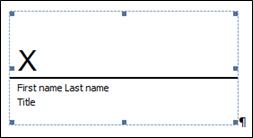
An unsigned signature line
  1. In the file, right-click the signature line.
    NOTE: If the file opens in Protected View, click Edit Anyway, if the file is from a reliable source.
  2. From the menu, select Sign.
    • To add a printed version of your signature, type your name in the box next to the X.
    • To select an image of your written signature, click Select Image. In the Select Signature Image dialog box, find the location of your signature image file, select the file that you want, and then click Select.
      NOTES: For customers using Chinese- (Traditional or Simplified), Korean-, or Japanese-language versions, the Stamp Signature Lineoption appears.
      In addition, you can sign a signature line by double-clicking the signature line. Type your name next to the X. Or, in the Signature Pane, in the Requested Signatures section, click the arrow next to the signature. From the menu, select Sign.
    • To add a handwritten signature (Tablet PC users only), sign your name in the box next to the X by using the inking feature.
    • Click Sign.
    • The Signatures button appears at the bottom of the document or worksheet.
The following image shows the Signatures button.
The red Signature button

Remove digital signatures from Word or Excel

  1. Open the document or worksheet that contains the visible signature you want to remove.
  2. Right-click the signature line.
  3. Click Remove Signature.
  4. Click Yes.
NOTE: In addition, you can remove a signature by clicking the arrow next to the signature in the Signature Pane. Click Remove Signature.

Add invisible digital signatures in Word, Excel, or PowerPoint

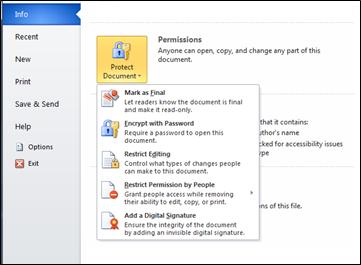
To protect the authenticity of a document's content, you can add an invisible digital signature. Signed documents have the Signatures button at the bottom of the document.
Protect Document button with options
  1. Click the File tab.
  2. Click Info.
  3. Click Protect DocumentProtect Workbook or Protect Presentation.
  4. Click Add a Digital Signature.
  5. Read the Word, Excel, or PowerPoint message, and then click OK.
  6. In the Sign dialog box, in the Purpose for signing this document box, type the purpose.
  7. Click Sign.
After a file is digitally signed, the Signatures button appears, and the file becomes read-only to prevent modifications.

Remove invisible digital signatures from Word, Excel, or PowerPoint

  1. Open the document, worksheet, or presentation that contains the invisible signature you want to remove.
  2. Click the File tab.
  3. Click Info.
  4. Click View Signatures.
  5. The document, worksheet, or presentation view returns, and the Signatures pane appears.
  6. Next to the signature name, click the arrow.
  7. Click Remove Signature.
  8. Click Yes.
Source: https://support.office.com/en-us/article/Add-or-remove-a-digital-signature-in-Office-files-70d26dc9-be10-46f1-8efa-719c8b3f1a2d

Saturday, November 5, 2016

SAP Business One Tables

Skip to end of metadata
DunningLetters
Dunning levels definition
ODUN
Recipients
Message recipient list
AOB1
Messages
Messages
OALR
Currencies
Currency codes
OCRN
UserPermissionTree
User authorizations for add-on forms
OUPT
UserPermissionForms
User permission forms
UPT1
Users
Users of SAP Business One application
OUSR
UserPermission
User authorizations
USR3
AddonChecking(SBO-COMMON Database Only runned this table) 
Overall Addon Path Defining 
SARI 
User Queries 
User Queries 
OUQR 

Finance

Budget
Budget management
OBGT
Budget_Lines
Budget item details of an account
BGT1
BudgetDistribution
Budget distribution methods
OBGD
BudgetScenarios
Budget scenarios
OBGS
ChartOfAccounts
G/L accounts
OACT
JournalVouchers
Journal vouchers
OBTD
JournalEntries_Lines
Journal transaction - rows
JDT1
JournalEntries
Journal transaction
OJDT
SalesTaxAuthorities
Sales tax jurisdictions
OSTA
SalesTaxAuthoritiesTypes
Sales tax authority types
OSTT
SalesTaxCodes
Inclusive sales tax codes
OSTC

Marketing Documents and Receipts 
(Sales Opportunities, Sales A/R, and Purchasing A/P)

Document_Lines
Delivery note rows
DLN1
Document_LinesAdditionalExpenses
Delivery note rows - expenses
DLN2
DocumentsAdditionalExpenses
Delivery note - expenses
DLN3
AdditionalExpenses
Defines additional expenses
OEXD
Document_Lines
Draft - rows
DRF1
Document_LinesAdditionalExpenses
Draft rows - expenses
DRF2
DocumentsAdditionalExpenses
Draft - expenses
DRF3
Document_Lines
Invoice - rows
INV1
Document_LinesAdditionalExpenses
Invoice rows - expenses
INV2
DocumentsAdditionalExpenses
Invoice - expenses
INV3
Document (oDeliveryNote)
Delivery - header
ODLN
Documents
Drafts - header
ODRF
Documents (oInvoice)
Invoice - header
OINV
Document (oPurchaseInvoices)
AP invoice - header
OPCH
Document (oPurchaseDeliveryNotes)
Goods receipt purchase order - header
OPDN
Document (oPurchaseOrders)
Purchase order - header
OPOR
Document (oQuotation)
Quotation - header
OQUT
Document (oReturn)
Returns - header
ORDN
Document (oOrder)
Order - header
ORDR
Document (oCreditNote)
AR credit memo - header
ORIN
Document (oPurchaseCreditNotes)
AP credit memo - header
ORPC
Document (oPurchaseReturns)
Goods return - header
ORPD
Document_Lines
AP invoice - rows
PCH1
Document_LinesAdditionalExpenses
AP invoice rows - expenses
PCH2
DocumentsAdditionalExpenses
AP invoice - expenses
PCH3
Document_Lines
Goods receipt purchase order - row
PDN1
Document_LinesAdditionalExpenses
Goods receipt purchase order rows - expenses
PDN2
DocumentsAdditionalExpenses
Goods receipt purchase order - expenses
PDN3
Document_Lines
Purchase order - rows
POR1
Document_LinesAdditionalExpenses
Purchase order rows - expenses
POR2
DocumentsAdditionalExpenses
Purchase order - expenses
POR3
Document_Lines
Quotation - rows
QUT1
Document_LinesAdditionalExpenses
Quotation rows - expenses
QUT2
DocumentsAdditionalExpenses
Quotation - expenses
QUT3
Document_Lines
Returns - rows
RDN1
Document_LinesAdditionalExpenses
Return rows - expenses
RDN2
DocumentsAdditionalExpenses
Returns - expenses
RDN3
Document_Lines
Order - rows
RDR1
Document_LinesAdditionalExpenses
Order rows - expenses
RDR2
DocumentsAdditionalExpenses
Order - expenses
RDR3
Document_Lines
Credit memo - rows
RIN1
Document_LinesAdditionalExpenses
Credit memo rows -Expenses
RIN2
DocumentsAdditionalExpenses
Credit memo - expenses
RIN3
Document_Lines
AP credit memo - rows
RPC1
Document_LinesAdditionalExpenses
AP credit memo rows - expenses
RPC2
DocumentsAdditionalExpenses
AP credit memo - expenses
RPC3
Document_Lines
Goods return - rows
RPD1
Document_LinesAdditionalExpenses
Goods return rows - expenses
RPD2
DocumentsAdditionalExpenses
Goods return - expenses
RPD3
BatchNumbers
Batch number for item
OIBT
Industries
Industries list for sales opportunities
OOND
Relationships
Relationships for sales opportunities
OORL
SerialNumbers
Serial numbers for items
OSRI
WithholdingTaxData
Withholding tax data
INV5
TaxInvoices (botit_Invoice)
Master header data of a tax invoice of sales document
OTSI
TaxInvoice_Lines (botit_Invoice)
Tax invoice of sales document - rows
TSI1
TaxInvoices (botit_Payment)
Master header data of a tax invoice of purchase document
OTPI
TaxInvoice_Lines (botit_Payment)
Tax invoice of purchase document - rows
TPI1
TaxInvoices (botit_JournalEntry)
Master header data of a tax invoice of journal entry document
OTXD
TaxInvoice_Lines (botit_JournalEntry)
Tax invoice of journal entry document - rows
TXD1

Business Partners

ActivityLocations
Business partner activity locations
OCLO
ActivityStatus
Statuses for Task type activities
OCLA
ActivityTypes
Business partner activity types
OCLT
AlternateCatNum
Customer or vendor catalog number
OSCN
BusinessPartners
Business partners
OCRD
BPAddresses
Business partner addresses
CRD1
BPPaymentMethods
Business partner payment methods
CRD2
BPAccountReceivablePayble
Business partner account receivable payable
CRD3
BPWithholdingTax
Business partner withholding tax
CRD4
BPPaymentDates
Business partners payment dates
CRD5
BPBankAccounts
Business partners bank accounts
OCRB
Contacts
Contact customers and vendors
OCLG
ContactEmployees
Contact persons
OCPR
SalesOpportunities
Sales opportunities
OOPR
SalesOpportunitiesLines
Sales opportunity - rows
OPR1
SalesOpportunitiesPartners
Sales opportunity partners
OPR2
SalesOpportunitiesCompetition
Sales opportunity competition
OPR3
SalesOpportunitiesInterests
Sales opportunity interests range
OPR4
SalesOpportunitiesReasons
Sales opportunity failure reasons
OPR5
Territories
Territory segmentations
OTER

Inventory and Production

Document_Lines
Goods issue - rows
IGE1
Document_LinesAdditionalExpenses
Goods issue rows - expenses
IGE2
DocumentsAdditionalExpenses
Goods issue - expenses
IGE3
Document_Lines
Goods receipt - rows
IGN1
Document_LinesAdditionalExpenses
Goods receipt rows - expenses
IGN2
DocumentsAdditionalExpenses
Goods receipt - expenses
IGN3
Document (oInvetoryGenExit)
Goods issue
OIGE
Document (oInvetoryGenEntry)
Goods receipt
OIGN
StockTransfer
Stock transfers
OWTR
StockTransfer_Lines
Stock transfers - rows
WTR1
ProductTrees_Lines
Product tree - child
ITT1
ProductTrees
Product tree
OITT
WorkOrders
Work instructions
OWKO
WorkOrder_Lines
Work instructions - rows
WKO1
Items_Prices
Items - prices
ITM1
Items
Items
OITM
ItemWarehouseInfo
Items - warehouse
OITW
ItemGroups
Item groups definition
OITB
MaterialRevaluation
Stock revaluation
OMRV
MaterialRevaluation_Lines
Stock revaluation - rows
MRV1
PackagesTypes
Package types for deliveries
OPKG
PriceLists
Price lists management
OPLN
StockTaking
Items - warehouse
OITW
SpecialPrices
Special prices
OSPP
SpecialPricesDataAreas
Special prices for specified periods
SPP1
SpecialPricesQuantityAreas
Special prices for specified quantities
SPP2
Warehouses
Warehouses definition
OWHS

MRP

SalesForecast
Sales forecast
OFCT
SalesForecast_Lines
Sales forecast - rows
FCT1

Banking

Payments
Receipt
ORCT
Payments
Vendor payment
OVPM
Payments_Checks
Receipt - checks
RCT1
Payments_Invoices
Receipt - invoices
RCT2
Payments_CreditCards
Receipt - credit vouchers
RCT3
Payments_Accounts
Receipt - account list
RCT4
Payments_Checks
Payments - check rows
VPM1
Payments_Invoices
Payments - invoices
VPM2
Payments_CreditCards
Payments - credit memos
VPM3
Payments_Accounts
Payments - list of accounts
VPM4
ChecksforPaymentLines
Checks for payment - rows
CHO1
BankPages
External bank statement
OBNK
ChecksforPayment
Check for payment
OCHO
PaymentTermsTypes
Payment term types
OCTG
PaymentRunExport
Payment results table
OPEX
PaymentRunExport_Lines
Payment results table - rows
PEX1
BillOfExchange
Bill of exchange table
OBOE
BillOfExchangeTransaction
Bill of exchange transactions table
OBOT
BillOfExchangeTransaction_Lines
Bill of exchange transactions table - rows
BOT1

Service

ContractTemplates
Contract template (CRM)
OCTT
CustomerEquipmentCards
Customer equipment card
OINS
KnowledgeBaseSolutions
Knowledge base solution
OSLT
Queue
Queues list for assigning to a service calls
OQUE
QueueMembers
Queue member users
QUE1
ServiceContracts
Service contract
OCTR
ServiceContracts_Lines
Service contract - rows
CTR1
ServiceCalls
Service call
OSCL
ServiceCallActivities
Service call activities
OCLG
ServiceCallInventoryExpenses
Service call inventory expenses
INV1

Human Resources

EmployeesInfo
Employees information
OHEM
EmployeeAbsenceInfo
Employee absence information
HEM1
EmployeeEducationInfo
Employee education
HEM2
EmployeeReviewsInfo
Employee reviews
HEM3
EmployeePrevEmpoymentInfo
Employee previous employment information
HEM4
EmployeeRolesInfo
Employee rolls information
HEM6
Teams
List of teams
OHTM
TeamMembers
Employee membership role in a team
HTM1

If there is any other better option,
Please share it here or mail to me arkaa4@gmail.com

Thank You,
Arka Gupta.