Create a signature line in Word or Excel
- In the document or worksheet, place your pointer where you want to create a signature line.
- On the Insert tab, in the Text group, click the Signature Line list, and then click Microsoft Office Signature Line.
- In the Signature Setup dialog box, type information that will appear beneath the signature line:

- Suggested signer The signer's full name.
- Suggested signer's title The signer's title, if any.
- Suggested signer's e-mail address The signer's e-mail address, if needed.
- Instructions to the signer Add instructions for the signer.
- Select one or both of the following check boxes:
- Allow the signer to add comments in the Sign dialog box Allow the signer to type a purpose for signing.
- Show sign date in signature line Signature date will appear with signature.
TIP: To add additional signature lines, repeat these steps.
NOTE: If the document remains unsigned, the Signatures Message Bar appears. Click View Signatures to complete the signature process.

Sign the signature line in Word or Excel
When you sign a signature line, you add a visible representation of your signature and a digital signature.
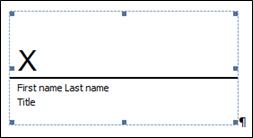
- In the file, right-click the signature line.NOTE: If the file opens in Protected View, click Edit Anyway, if the file is from a reliable source.
- From the menu, select Sign.
- To add a printed version of your signature, type your name in the box next to the X.
- To select an image of your written signature, click Select Image. In the Select Signature Image dialog box, find the location of your signature image file, select the file that you want, and then click Select.NOTES: For customers using Chinese- (Traditional or Simplified), Korean-, or Japanese-language versions, the Stamp Signature Lineoption appears.In addition, you can sign a signature line by double-clicking the signature line. Type your name next to the X. Or, in the Signature Pane, in the Requested Signatures section, click the arrow next to the signature. From the menu, select Sign.
- To add a handwritten signature (Tablet PC users only), sign your name in the box next to the X by using the inking feature.
- Click Sign.
- The Signatures button appears at the bottom of the document or worksheet.
The following image shows the Signatures button.

Remove digital signatures from Word or Excel
- Open the document or worksheet that contains the visible signature you want to remove.
- Right-click the signature line.
- Click Remove Signature.
- Click Yes.
NOTE: In addition, you can remove a signature by clicking the arrow next to the signature in the Signature Pane. Click Remove Signature.
Add invisible digital signatures in Word, Excel, or PowerPoint
To protect the authenticity of a document's content, you can add an invisible digital signature. Signed documents have the Signatures button at the bottom of the document.
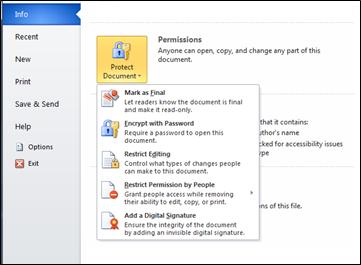
- Click the File tab.
- Click Info.
- Click Protect Document, Protect Workbook or Protect Presentation.
- Click Add a Digital Signature.
- Read the Word, Excel, or PowerPoint message, and then click OK.
- In the Sign dialog box, in the Purpose for signing this document box, type the purpose.
- Click Sign.
After a file is digitally signed, the Signatures button appears, and the file becomes read-only to prevent modifications.
Remove invisible digital signatures from Word, Excel, or PowerPoint
- Open the document, worksheet, or presentation that contains the invisible signature you want to remove.
- Click the File tab.
- Click Info.
- Click View Signatures.
- The document, worksheet, or presentation view returns, and the Signatures pane appears.
- Next to the signature name, click the arrow.
- Click Remove Signature.
- Click Yes.

